

Our phones know everything about us. Banking details, personal photos, work emails, private conversations — it all lives in one place, which is exactly why more people are starting to think seriously about smartphone privacy.
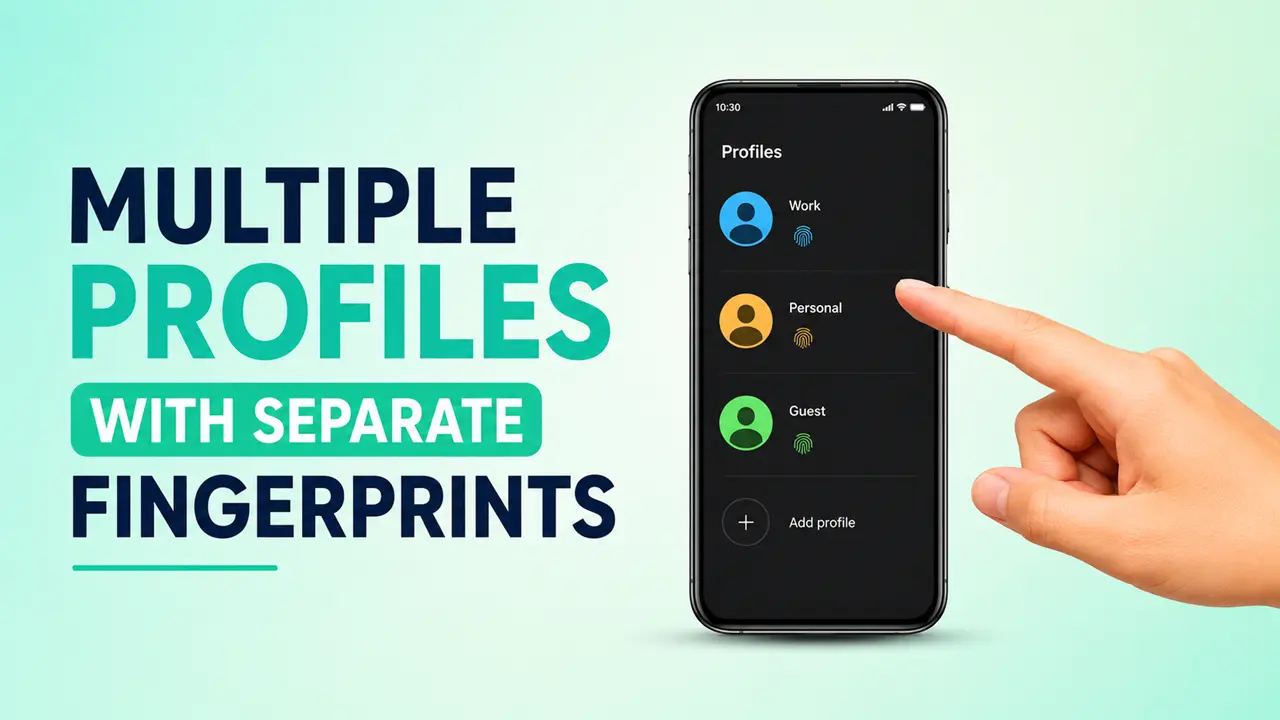
One of the more underrated solutions to this problem is the Android system cloner feature. If you haven’t heard of it, the basic idea is simple: it lets you create a completely separate environment on your phone, with its own apps, files, passwords, and even its own fingerprint unlock. Think of it as having two phones running inside one device.
Different brands market this under different names — second space, privacy space, or simply dual space — but the core idea is the same across all of them.
So What Exactly Is a System Cloner?
At its heart, a system cloner carves out an isolated user profile within your existing Android device. The cloned space isn’t just a folder or a restricted app — it’s a fully independent environment.
Inside that second profile, you can have:
- A completely different set of installed apps
- Separate photos, downloads, and documents
- Its own PIN, password, or fingerprint
- Different accounts signed in (yes, two WhatsApps, two Instagrams)
- Independent notification settings and preferences
The separation is real. Apps don’t bleed data across profiles, and files stay siloed. If someone picks up your phone and opens the main profile, they’ll have no idea the second one even exists.
Switching Profiles with a Fingerprint
This is genuinely one of the cleverer implementations of the feature. Rather than navigating through menus every time you want to switch, many Android phones let you map different fingerprints to different profiles.
So in practice:
- Your right thumb unlocks your personal profile
- Your left thumb quietly drops you into the private one
It sounds small, but it makes the whole experience feel seamless rather than clunky. No one watching you unlock your phone would even notice anything unusual.
Separate Passwords for Separate Profiles
Beyond fingerprints, each profile can be protected with a completely different lock method. One profile might use a PIN, another a pattern, another a full password. There’s no overlap — gaining access to one profile doesn’t give anyone a shortcut to the other.
This matters more than it sounds. For anyone who occasionally hands their phone to someone else, or who shares a device with family members, this kind of compartmentalization offers real peace of mind.
Read More: The 5 Ways to Fix Blurry Pictures on Your Phone.
How It’s Different from App Cloning
A lot of people mix these two things up, so it’s worth drawing a clear line.
App cloning duplicates a single app so you can run two accounts simultaneously (two WhatsApp numbers, for example). It’s useful, but limited — the cloned app still lives in your main environment, shares the same storage, and is visible to anyone using your phone.
Which Phones Support This?
Most Android Mobile phone brands have their own version of the feature, though they name it differently:
- Xiaomi / Redmi / POCO — Second Space
- OnePlus — System Cloner
- OPPO / realme — System Cloner or Private Safe
- Samsung — Secure Folder
- vivo — Privacy Space
The exact options vary depending on your device and Android version, but the feature is widely available.
How to Enable Android System Cloner
The setup process is very easy and straightforward, though the exact menu path may vary in diffrent brand of device:
Step 1: Open your phone’s Settings app.
Step 2: Search for terms like System Cloner, Second Space, Privacy Space, or Multiple Users.
Step 3: Follow the prompts to create a new profile. You’ll set up a separate password, PIN, or fingerprint during this step.
Step 4: Once inside the new profile, install whatever apps you need and configure settings from scratch.
After that, switching between profiles is as simple as using the assigned fingerprint or navigating to the toggle in quick settings.
Who Actually Needs This?
More people than you might think. Some common use cases:
Remote workers who want a clean wall between their job and personal life — work apps stay in the work profile, and clocking off actually means something.
Gamers who want a distraction-free space with only their games and no notifications interrupting a session.
People with privacy concerns who store sensitive documents, financial apps, or private conversations and don’t want them casually accessible.
Anyone who shares their phone — whether with a partner, a child, or a parent — can hand the device over without worrying about what someone might stumble across.
A Few Things to Watch Out For
This feature isn’t without its quirks. A few things worth knowing before you dive in:
Storage adds up. Each profile effectively has its own app installs, so your available storage will shrink faster than usual. Pruning unused apps in secondary profiles helps.
Notifications can lag. Some apps restrict background activity in secondary profiles, which can delay or completely suppress notifications. If this happens, check the app’s battery and background settings inside that profile.
Fingerprint switching doesn’t always work out of the box. If your fingerprint isn’t switching profiles as expected, try re-registering it specifically within the cloned profile — that usually sorts it out.
Where This Is All Heading
Multi-user functionality on Android is steadily improving. The rough edges that existed a few years ago — slow switching, notification problems, permission quirks — are being smoothed out with each major Android update.
As more people use their phones for genuinely sensitive tasks (mobile banking, remote work, healthcare apps), the demand for better on-device privacy tools will only grow. Features like system cloning are likely to become more refined and more widely available, not less.
Solution for older Android devices
If your phone doesn’t have a built-in System Cloner, you can turn to apps such as Island (you can download it from playstore link is given below this paragraph) to create a separate private app space. This apps allow you to run dual accounts and isolate apps on older Android phones.
Conclusion
If you’ve never explored your phone’s multi-profile options, it’s worth a few minutes of your time. The Android system cloner feature — whatever your brand happens to call it — offers a practical, low-friction way to keep different parts of your life genuinely separate.
It’s not just about hiding things. It’s about having a phone that works the way your life actually works.
FAQs
Q 1. Is it safe to use Android System Cloner?
Answer –Yes. The profile separation is enforced at the OS level, meaning apps genuinely can’t access data from other profiles.
Q 2. Android System Cloner Will slow my phone?
Answer – No, though running resource-heavy apps in multiple profiles simultaneously can impact RAM availability on lower-end devices.
Q 3. Can both profiles receive calls and messages?
Answer – Calls and cellular functions typically remain tied to the main profile. Only apps are fully duplicated.
Q 4. Will I lose data if I delete a secondary profile?
Answer – Yes — everything inside that profile gets wiped when it’s deleted. Back up anything important before removing a profile.

