

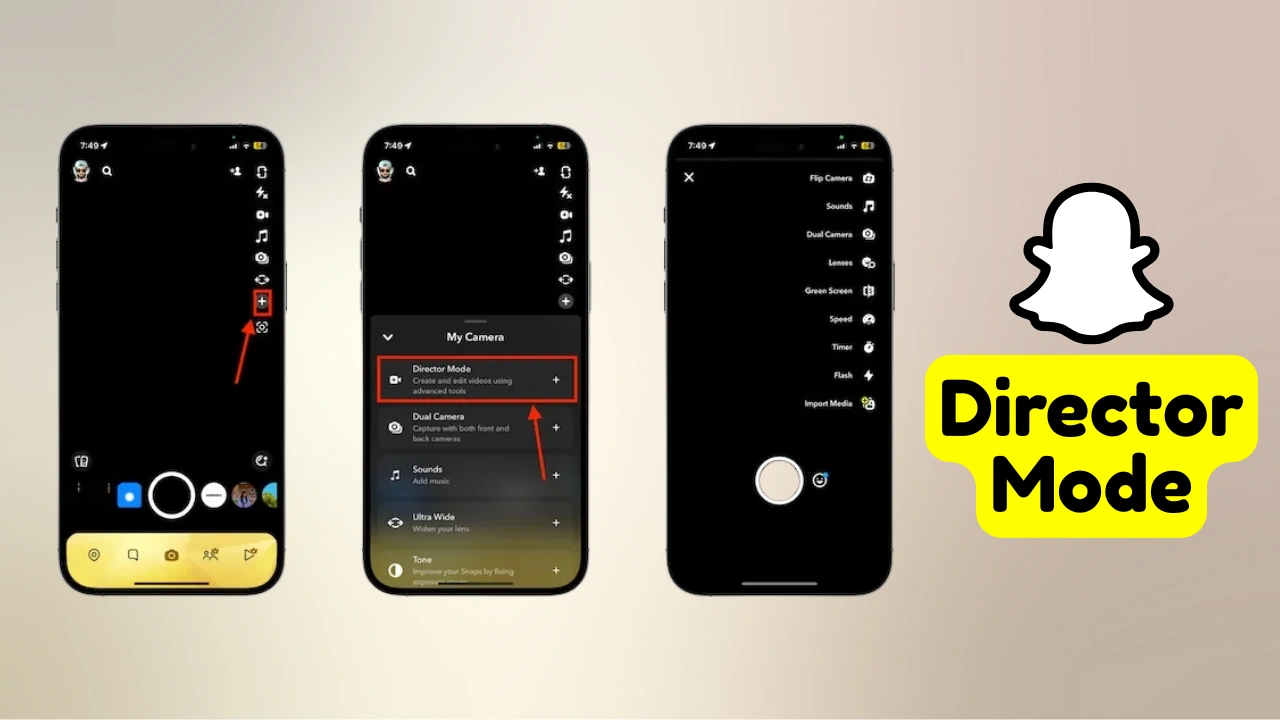
Snapchat’s turned into a decent video editor in disguise, honestly. You don’t need CapCut, a separate green screen app, and three export-reimport cycles just to post one clip — Director Mode handles most of that inside the camera itself now.
If you’ve never poked around in there, here’s what it is, what it does, and how to fix it when it goes missing. Which happens more than you’d think.
What Director Mode Actually Is
It’s Snapchat’s built-in toolkit for shooting video that doesn’t look like it was filmed in three seconds on a moving bus. Dual camera, green screen, speed controls, quick trims — all in one spot in the camera interface, instead of scattered across the app.
You’ll find it as the film camera icon in the Camera Modes toolbar. On some app versions it’s not even a separate menu — the individual tools like Hands-Free and Speed just sit directly in the toolbar.
What’s Actually In It
Dual Camera records front and back at once. Useful for reactions, or showing both what you’re filming and your face while you film it.
Green Screen swaps your background for a photo or video. Works for travel content, works for nonsense, works for both.
Speed Controls let you slow down or speed up a clip. It’s a small setting that changes the whole feel of a video.
Timer and Hands-Free mean you can set it and step away instead of holding your arm out at some weird angle.
Quick Edit is for trimming and adding transitions before you send.
How to Actually Use It
Open the camera, tap the film icon (or the dropdown arrow if that’s not showing), pick a mode, shoot, edit. That’s the whole process. No tutorial required.
Is It Worth Bothering With?
For most people, yeah. It’s faster than juggling apps, the output looks more finished, and you skip the export-then-reimport loop entirely. If you’re posting to Spotlight or Stories on any kind of regular basis, this is the difference between content that looks planned and content that looks like an afterthought.
Does Your Phone Support It?
Probably, if Snapchat runs on it at all. Snapchat needs Android 5.0+ or iOS 14.0+, and Director Mode doesn’t ask for anything beyond that — just keep the app updated.
One wrinkle worth knowing: Director Mode hit iOS first, with Android catching up over time. So if it’s missing on an Android phone, an outdated app is almost always the reason, not the hardware.
Read More: How to Use Android System Cloner for Multiple User Profiles
Things That Actually Help
Light matters more than people expect — more than any editing trick can fix after the fact. A steady hand (or a cheap stand) beats a fancy filter every time. And shoot at your phone’s max resolution; you’ll want the extra room if you crop or repost later.
When It Won’t Cooperate
Can’t find it? Update the app, restart it, check the dropdown menu — Snapchat’s moved it before. App feels stale? Features don’t appear without updates. Old phone that doesn’t meet the OS minimums? There’s no workaround for that one. Laggy? Close background apps and clear some storage — video tools eat resources fast.
So, Worth Using?
It won’t replace a real editing app if you’re doing something ambitious. But for everyday Snaps and Spotlight posts, it covers what most people need without adding a single extra app to your phone. know more about snapchat director mode.
FAQ
Q. What is Director Mode on Snapchat?
Ans- A built-in toolkit for recording and editing video without leaving the app.
Q. Does it work on Android?
Ans- Yes, as long as you’re running Android 5.0+ with an updated Snapchat app.
Q. How do I turn it on?
Ans- Camera screen → film icon in the toolbar (or the dropdown arrow) → Director Mode.
Q. Is it free?
Ans- Yes, no extra cost.
Q. Can I use it for Spotlight?
Ans- Yes — anything shot in Director Mode can go straight to Spotlight or Stories.
Q. Why can’t I see Director Mode?
Ans- Snapchat has gradually moved some Director Mode tools directly into the camera toolbar. If you don’t see the Director Mode button, update Snapchat and check the camera toolbar for individual features such as Hands-Free or Speed.

