

I used to just walk around holding my phone up like I was trying to catch a signal from outer space, hoping some cafe’s WiFi would magically show up in my list. It never worked like that. Turns out there’s a much easier way to figure out where the free WiFi actually is before you even leave the house, and once you know it, you kind of wonder why nobody tells you sooner.
So here’s the thing. Your phone already scans for nearby networks, sure, but it has no idea which ones are free, which ones need a password, or which ones are just some guy’s home router with the security turned off by accident. That’s really the whole problem. You need something that actually knows the difference.
Getting an app for this
A few apps exist just for this exact purpose, and honestly they all work in roughly the same way. WiFi Map is probably the one you’ll run into most, but WiFi Around and Avast’s WiFi Finder do the same basic job too. They’re built on top of a giant, crowdsourced list of hotspots that regular users have added over time, and that list gets dropped onto a map so you can see what’s around you.
Download whichever one has decent reviews and looks like it’s still being updated. That last part matters more than people think, because a WiFi database that hasn’t been touched in two years is basically useless. Businesses close, routers get changed, passwords get updated.
Once it’s installed, it’s going to ask for your location. Just say yes. There’s no way around this one, the whole point of the app is knowing where you physically are so it can tell you what’s nearby, so if you deny it, you’ll just be staring at an empty map.
Reading the map (or skipping it)
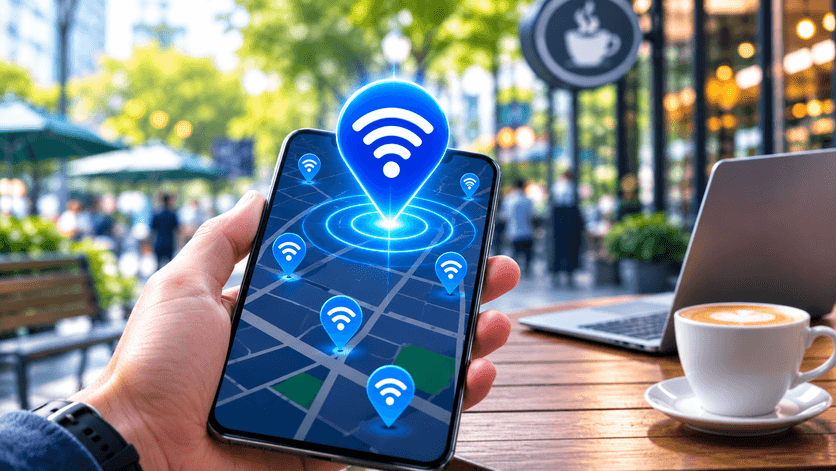
From there you’ll usually land on a map full of little pins. Different colors tend to mean different things, free versus password protected versus “somebody in the community verified this one actually works.” Tap on any pin and you’ll get more info, stuff like the network name, whether you need a password, and sometimes reviews from other people who’ve connected there before.
Read More : How to Get Free WiFi Using the Instabridge App
Not a fan of maps? Most of these apps let you flip over to a plain list instead, sorted by distance. Honestly I use this way more than the map view because I don’t want to zoom in and squint at pins, I just want to see what’s closest and pick one.
Actually connecting
When you find something worth connecting to, tap it. If it’s genuinely open, you’re in right away. If it needs a password and someone else already shared it in the app, it’ll usually just fill that in for you automatically, which feels a little like cheating but whatever, it works. If nobody’s shared it yet, you’ll have to just ask whoever’s working there.
A lot of these apps throw in a speed test too, and it’s actually worth using before you commit to sitting down and working off a connection. Nothing worse than getting settled in somewhere only to realize the WiFi is basically unusable.
Wait, Open doesn’t always mean free
Here’s a mistake I made early on. Seeing a network with no lock icon does not automatically mean it’s meant to be used by strangers. Sometimes that’s just someone’s router with weak security, not an intentional hotspot. If the network name clearly matches a business, like an airport or a coffee shop, that’s usually a safe bet. If it’s some random string of letters and numbers with no lock, maybe don’t.
If you don’t want another app on your phone
You don’t strictly need an app for any of this. Googling “free WiFi near me” actually pulls up pretty solid map results now, since it’s often pulling from what businesses have already listed about themselves. Reading reviews on Google Maps or Yelp helps too, people love complaining or bragging about WiFi speed in reviews, so searching for “fast wifi” or “good for working” in the reviews tends to point you somewhere decent. Libraries are also criminally underrated for this. Nobody thinks of them first but they almost always have solid, actually free WiFi.
A quick word on safety
Public WiFi is convenient but it’s not exactly Fort Knox. Don’t do your banking on it if you can help it. A VPN helps if you’re going to be doing anything remotely sensitive. And watch out for networks with names that look almost right but not quite, like a WiFi network claiming to be the airport’s official one but spelled slightly wrong, that’s a classic trick to get people to connect to something they shouldn’t. It’s also worth turning off auto connect on your phone when you’re somewhere unfamiliar, so it doesn’t just latch onto whatever’s nearby without you noticing.
Final thought
That’s really all there is to it. You don’t need to wander around hoping for bars to show up. A decent app, or honestly even just a smart Google search, will tell you what’s around and whether it’s worth connecting to. Just don’t get too comfortable doing anything sensitive on a stranger’s network, and you’ll be fine.

